Building a website used to feel like a technical project. Now? It’s much more doable than most beginners think.
If you’ve been putting it off because you assumed you’d need coding skills, a developer, or a huge budget, here’s the good news: you don’t. You can absolutely learn how to create website with WordPress on your own, even if this is your first time doing anything like this.
What does matter is starting with the right setup.
That’s where many beginners get stuck. Not because WordPress is too hard, but because they choose the wrong hosting, skip basic settings, or try to do too much too early. A better setup makes everything easier, from installing WordPress to designing pages and launching with confidence.
In this guide, I’ll walk you through the full process step by step. You’ll learn what you need before you start, how to set everything up, how to design your site without coding, and how to launch without feeling overwhelmed.
Let’s start with the big question.
Why Use WordPress to Build a Website?
If you’re creating a website for a business, personal brand, blog, portfolio, or online service, WordPress is usually one of the smartest places to start.
It gives you flexibility without forcing you into a complicated workflow. You can keep things simple in the beginning, then expand later when your site grows.
What makes WordPress a smart choice for beginners
There are a few reasons WordPress works so well for first-time website owners.
First, it’s flexible. You can build a basic website now and add more features later without rebuilding everything from scratch.
Second, it’s user-friendly. Once you get familiar with the dashboard, updating pages, writing blog posts, and managing content becomes much easier than most people expect.
Third, it gives you control. You’re not stuck with a platform that limits what you can customize, install, or scale later.
With WordPress, you can:
- create pages without coding
- choose from thousands of themes
- add features using plugins
- manage content from one dashboard
- improve SEO over time
- grow your website as your needs change
So if you’re wondering how to build a WordPress website from scratch, this is one of the biggest reasons people choose it. You can start small and still build something solid.
WordPress.org vs WordPress.com
This is one of the first things that confuses beginners, so let’s make it simple.
WordPress.org is the self-hosted version of WordPress. This is what most people mean when they talk about building a full WordPress website. You get complete control over your site, your design, your plugins, and your hosting.
WordPress.com is a hosted platform. It can be easier at first, but it comes with more restrictions unless you pay for higher plans.
If you want more freedom, better customization, and a site you truly own, WordPress.org is usually the better choice.
That’s also the version this guide focuses on.
What types of websites can you build with WordPress?
One of the best things about WordPress is that it works for almost any type of website.
You can use it to build:
- a business website
- a personal blog
- a portfolio
- a service-based website
- an online store
- a landing page
- a booking website
- a membership site
In other words, you’re not choosing a platform that only works for one kind of project. You’re choosing one that can grow with you.
What You Need Before You Start ?
Before you install anything, it helps to get a few basics in place.
You don’t need a complicated plan. But you do need enough clarity to avoid making random decisions that slow you down later.
A domain name
Your domain name is your website’s address on the internet. It’s what people type in to visit your site.
For example: yourbusiness.com
A good domain name should be:
- easy to spell
- easy to remember
- relevant to your brand or service
- short enough to type comfortably
Try not to overcomplicate this part. You don’t need the most creative name in the world. You need one that’s clear, usable, and professional.
If you’re still comparing pricing and extensions, it’s worth checking this guide on WordPress domain name cost 2026 before you buy.
WordPress hosting
Hosting is what makes your website accessible online. Without it, your WordPress site has nowhere to live.
And honestly, this is one of the most important choices you’ll make.
Your hosting affects:
- website speed
- uptime
- security
- backups
- support
- ease of setup
- overall performance
This is why beginners often have a much smoother experience when they choose hosting built specifically for WordPress. A provider like Thamara can make setup feel simpler by offering WordPress-friendly tools, better performance, and support that actually understands beginner needs.
If you want a deeper breakdown of what to compare, this WordPress Hosting Guide is a good place to start.
A simple website plan
Before you start designing, take five minutes and answer these questions:
- What is the purpose of this website?
- Who is it for?
- What do you want visitors to do?
- What pages do you need first?
That’s enough.
You don’t need a detailed brand strategy or a 20-page wireframe. You just need a clear direction.
Your first 3 to 5 pages
A lot of beginners delay launching because they think they need a huge website from day one.
You don’t.
Most starter websites only need these core pages:
- Homepage
- About page
- Services or Products page
- Contact page
- Blog page
That’s more than enough to begin.
Step 1 – Choose a Domain Name and Hosting Provider
This is where your website really starts. And if you make smart choices here, the rest of the process gets a lot easier.
How to choose a domain name ?
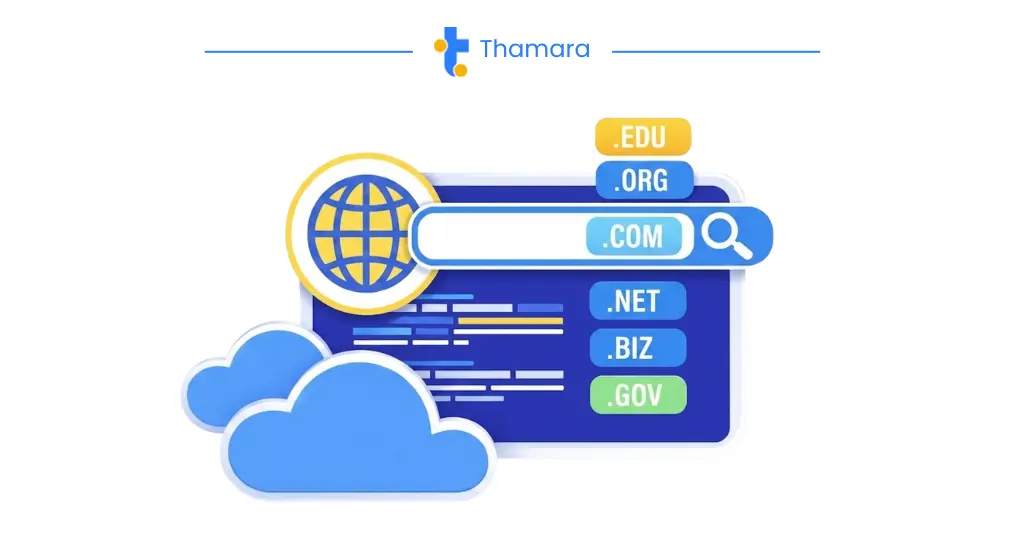
A domain name should be simple, clear, and easy to trust.
Here are a few good rules to follow:
- keep it short
- avoid hyphens and numbers
- make it easy to pronounce
- choose something relevant to your niche or business
- go with .com if it fits your audience and brand
A practical domain name is better than waiting weeks for the “perfect” one.
What to look for in WordPress hosting ?
Not all hosting plans are beginner-friendly. If you’re learning how to create website with wordpress, you want hosting that removes technical friction instead of adding more of it.
Here’s what to look for:
- 1-click WordPress install
- free SSL certificate
- strong uptime
- good loading speed
- responsive support
- automatic backups
- WordPress optimization
These aren’t “nice to have” features. They directly affect how easy your website is to build and manage.
Why beginner-friendly hosting matters ?
Here’s something a lot of new website owners realize too late: the hosting decision affects almost everything.
A beginner can usually learn WordPress. That’s not the hard part.
The hard part is dealing with slow dashboards, missing backups, security issues, poor support, and confusing setup tools when your hosting provider wasn’t built to help beginners in the first place.
That’s why beginner-friendly WordPress hosting matters so much. It removes unnecessary stress and gives you a cleaner path from setup to launch.
If you want a more guided first experience, Thamara is a strong option because it focuses on things beginners actually need: easier setup, WordPress-ready performance, useful support, and solid security from the start.
Step 2 – Install WordPress
Once your domain and hosting are ready, it’s time to install WordPress.
This is the part many beginners assume will be technical. In reality, it’s often one of the easiest steps.
One-click installation vs manual installation
Most hosting providers offer 1-click WordPress installation, and that’s the best route for nearly all beginners.
It saves time, reduces setup mistakes, and gets you into your dashboard faster.
Manual installation is possible, but it usually involves extra steps like:
- creating a database
- uploading files
- editing configuration settings
That’s rarely necessary for a beginner.
If your hosting includes 1-click WordPress setup, use it.
How to log in to your WordPress dashboard ?
After installation, you can usually access your dashboard by going to:
yourdomain.com/wp-admin
Use the username and password you created during setup.
Once you log in, you’ll see the WordPress admin area. This is where you’ll manage your pages, blog posts, theme, plugins, and settings.
The main areas inside WordPress
At first, the dashboard can feel like a lot. That’s normal.
The main sections you’ll use most are:
- Posts for blog articles
- Pages for core website pages
- Media for images and files
- Appearance for themes, menus, and design settings
- Plugins for extra features
- Settings for site basics
You don’t need to learn every tab right away. Just get familiar with the essentials and move step by step.
Step 3 – Set Up the Basic Website Settings
Before designing anything, take a few minutes to fix the basic settings. This gives your site a cleaner foundation.
Site title and tagline
Go to Settings > General.
Your site title is usually your business name or website name.
Your tagline is a short sentence that explains what your site is about. It’s optional, but helpful if it adds clarity.
Permalinks
Go to Settings > Permalinks and choose Post name.
This creates cleaner URLs, which are better for both users and search engines.
For example:
yourdomain.com/about
looks much better than a default URL with random numbers.
Homepage settings
By default, WordPress may display your latest blog posts on the homepage.
If you want a custom homepage instead, go to Settings > Reading and choose a static page as your homepage.
That’s what most business websites do.
Time zone and admin settings
Make sure your time zone is correct so post publishing times and scheduling work properly.
Also double-check your admin email address. You want WordPress notifications to go to an email you actually monitor.
SSL and security basics
Your site should load with HTTPS, not just HTTP.
This means your SSL certificate is active. It helps secure your site and builds trust with visitors.
Many beginner-friendly hosting providers include free SSL automatically, which saves you from handling it manually.
Step 4 – Choose a Theme and Start Designing Your Website
Now your website starts to look like a real website.
This is where people usually get excited — and sometimes a little distracted. So keep one thing in mind: clear and usable is better than flashy and confusing.
How to choose a WordPress theme ?
Your theme controls the overall design and layout of your website.
A good WordPress theme should be:
- clean
- fast
- mobile-friendly
- easy to customize
- actively updated
Try not to pick a theme just because the demo looks impressive. Demo sites often use perfect images, polished copy, and lots of extras that won’t match your real site.
Instead, ask yourself: Will this theme still look good when I add my own content?
Free vs premium themes
Free themes are enough for many beginners, especially if your website is simple.
Premium themes can offer:
- more templates
- extra design controls
- built-in features
- dedicated support
That said, don’t assume paid always means better. A lightweight, well-coded free theme can be a much smarter choice than a bloated premium one.
How to design a website with WordPress without coding
If you’ve been worried about the design side, take a breath. You can absolutely learn how to design a website with WordPress without writing code.
You can use WordPress to:
- edit layouts with blocks
- add images and sections
- change colors and fonts
- organize content visually
- build a polished site step by step
That’s one of the reasons WordPress is so popular with beginners. It lets you create something professional without needing a technical background.
Mobile-friendly design basics
Don’t only design for desktop.
A large part of your traffic will likely come from mobile devices, so your site needs to feel smooth on smaller screens too.
Check that:
- text is easy to read
- buttons are easy to tap
- spacing feels comfortable
- menus work properly
- nothing looks broken or cramped
If your site doesn’t work well on mobile, it’s not really finished yet.
Step 5 – Should You Use a Page Builder for WordPress?
At this point, many beginners start asking about page builders. Do you need one? Sometimes yes. Often no.
What is a page builder?
A page builder for WordPress is a tool that helps you build pages visually.
Instead of relying only on the default editor, you can drag, arrange, and customize sections more freely.
This is useful when you want more design flexibility without coding.
When to use a page builder
A page builder makes sense when:
- you want custom landing pages
- you need more layout control
- your theme feels limited
- you want to design pages visually
If you care a lot about layout freedom, it can help.
When the default WordPress editor is enough
For many small business websites, the default WordPress block editor is enough.
If you’re creating:
- a homepage
- an about page
- a services page
- a blog
- a contact page
…you may not need anything extra.
In fact, keeping things simple often gives you a faster, cleaner website.
Beginner-friendly options
If you decide to use a page builder, choose one that is easy to learn and doesn’t overload your site.
The goal is to make building easier, not heavier.
Step 6 – Create Your Essential Pages
Now it’s time to build the pages your visitors actually need.
Homepage
Your homepage should answer a few questions quickly:
- who you are
- what you offer
- who it’s for
- what the next step should be
Keep it clear. Don’t try to explain everything at once.
About page
Your About page helps visitors trust you.
Use it to explain:
- who you are
- what you do
- who you help
- why your business exists
You don’t need to make it overly formal. Write like a real person.
Services or Products page
This page should clearly explain what you offer.
For each service or product, cover:
- what it is
- who it’s for
- how it helps
- what someone should do next
Clarity wins here.
Contact page
Make it easy for people to reach you.
At minimum, include:
- a contact form
- your email address
- phone number if relevant
- business location if relevant
- social links if useful
Blog page
Even if you don’t plan to publish a lot right away, creating a blog page from the start is a smart move.
It gives you room to build traffic, improve SEO, and share useful content over time.
And if you’re still deciding between WordPress hosting and a more general beginner setup, this guide on Set Up Your First Website: Shared Hosting Step-by-Step can help you compare the path that fits you best.
Step 7 – Install the Essential Plugins
Plugins are one of the reasons WordPress is so powerful. They let you add useful features without custom development.
The key is not installing too many.
SEO plugin
An SEO plugin helps you manage things like:
- meta titles
- meta descriptions
- XML sitemaps
- indexing settings
- on-page SEO basics
This helps search engines understand your content better.
Security plugin
Even a small new website needs protection.
A security plugin can help with:
- login protection
- malware scans
- suspicious activity monitoring
- firewall features
Backup plugin
Backups matter more than most beginners realize.
If something breaks during an update or a plugin causes an issue, a recent backup can save you from rebuilding pages manually.
Some hosting providers handle backups for you, which makes things much easier.
Caching/performance plugin
A caching or performance plugin can help your site load faster by reducing unnecessary strain.
That matters for:
- user experience
- SEO
- conversions
- mobile visitors
Contact form plugin
If you want visitors to contact you through your website, you’ll need a form plugin unless your setup already includes form functionality.
Keep your first form simple. Too many fields usually reduce conversions.
Step 8 – Optimize Your Website Before Launch
Before you hit publish, give your site one final round of checks.
This step is easy to rush, but it’s worth slowing down for.
Check speed
Run your site through a speed tool and review the basics.
Watch for:
- oversized images
- too many plugins
- a heavy theme
- poor hosting performance
A WordPress-optimized hosting provider can help a lot here, especially if you’re trying to keep things fast without getting technical.
Test mobile responsiveness
Open the site on your phone and actually use it.
Read the text. Tap the buttons. Open the menu. Submit the contact form.
Ask yourself: Would I trust this website if I landed on it as a visitor?
Set up menus
Your menu should be clean and obvious.
Most beginner websites only need:
- Home
- About
- Services or Products
- Blog
- Contact
Add favicon and logo
These small details make a site feel more complete and polished.
Your favicon appears in browser tabs, and your logo helps reinforce your brand.
Connect analytics and search console
Before launch, connect your website to analytics and search console.
This helps you:
- track visitors
- monitor traffic sources
- understand what people do on your site
- catch indexing issues early
Basic SEO checklist
Before going live, make sure:
- page titles are clear
- meta descriptions are written
- URLs are clean
- headings are structured properly
- images have alt text
- important pages are indexable
- your core pages are published
You don’t need perfect SEO on day one. You just need a solid foundation.
Step 9 – Launch Your Website
This is the part people often overthink.
At some point, your website is ready enough to go live. Not perfect. Just ready.
That’s enough.
Final pre-launch checklist
Before launching, check that:
- your homepage is complete
- your core pages are live
- menus are working
- forms are tested
- mobile design looks good
- SSL is active
- backups are enabled
- plugins and themes are updated
What to do after publishing
Launching your site is the beginning, not the end.
Once your site is live, keep improving it over time.
You can:
- update your copy
- add blog posts
- improve page speed
- test new layouts
- refine calls to action
- track what pages perform best
That’s how websites grow.
How to keep your site updated and secure
Going forward, make it a habit to:
- update WordPress regularly
- update themes and plugins
- remove unused plugins
- keep backups active
- review your site monthly
- monitor security warnings
This is another area where better hosting makes a real difference. When your provider supports WordPress properly, routine maintenance becomes much less stressful.
How Much Does It Cost to Create a WordPress Website?
One reason WordPress is so popular is that you can start affordably and scale later.
Still, it helps to know where your costs usually come from.
Domain
Your domain name is usually a yearly cost.
Pricing depends on the domain extension and provider, but it’s generally one of the smaller parts of the budget.
Hosting
Hosting is one of the most important costs because it affects the entire experience of building and running your site.
Beginner-friendly WordPress hosting is often worth the investment because it gives you better performance, support, security, and setup tools right from the start.
Theme
You can begin with a free theme and still build a great website.
If you want more advanced design features, you might later choose a premium theme.
Plugins
Many useful plugins are free, especially when you’re starting out.
Some premium plugins charge for advanced features like:
- premium SEO tools
- advanced forms
- enhanced security
- better backups
- extra design controls
Optional extras
Depending on your website goals, you may also spend on:
- logo design
- professional copywriting
- stock images
- email marketing tools
- developer support
- premium integrations
The good part is that most of these are optional at the start.
The Easiest Way to Create a WordPress Website as a Beginner
If you want the smoothest path, start with hosting that’s built specifically for WordPress.
That one choice can make the rest of the process much easier.
When your hosting includes:
- 1-click WordPress installation
- free SSL
- strong security
- backups
- fast performance
- helpful support
…you spend less time fixing setup issues and more time actually building your website.
That’s why beginner-friendly WordPress hosting is such a smart move. It reduces the learning curve without limiting what you can build later.
A provider like Thamara Hosting is a strong fit here because it helps simplify the parts that usually overwhelm beginners: setup, support, security, and WordPress performance. Instead of piecing everything together on your own, you start with a setup that’s already designed to support WordPress properly.
If you want the easiest first step, choose hosting that makes WordPress feel easier from day one.
Common Mistakes to Avoid
Let’s save you a few headaches.
Here are some of the most common beginner mistakes:
- choosing the cheapest host without checking performance
- installing too many plugins
- skipping backups
- ignoring mobile design
- using a bloated theme
- launching without core pages
None of these mistakes are impossible to fix. But avoiding them early makes your website easier to manage and more likely to perform well.
FAQs
Do I need hosting to create a WordPress website?
Yes. If you’re using WordPress.org, you need hosting to store your website files and make your site available online.
Can I build a WordPress website without coding?
Yes. Most beginners can build a professional-looking WordPress website without writing any code.
How long does it take to build a WordPress site?
A simple WordPress site can often be built in a day or two, especially if you already know what pages and content you need.
What is the best hosting for beginners?
The best hosting for beginners is hosting that makes WordPress easy to install, manage, secure, and optimize. That’s why beginner-focused providers like Thamara are worth considering.